Editing the effects for BUS 3 and BUS 4 (BUS 3, BUS 4)
Here’s how to edit the effects for BUS 3 and BUS 4.
This setting is automatically saved to the selected favorite.
- Hold down the [SHIFT] button and press the pad [13].
- The UTILITY MENU screen appears.
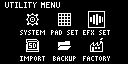
- Use the [VALUE] knob to select “EFX SET” and press the [VALUE] knob.
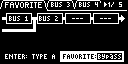
- The effect setting screen appears.
MEMO
- From the top screen, you can also make this screen appear by pressing pad [16] while holding down the [SHIFT] button.
- Turn the [CTRL 3] knob to select “FAVORITE”.
- Turn the [VALUE] knob to select the slot for which the parameters are to be edited (“FAVORITE 1”–“FAVORITE 16”).
- The BUS 3 and BUS 4 effects turn on according to the settings in each favorite, and can be edited.
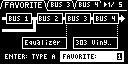
- Turn the [CTRL 3] knob to select the bus to edit (BUS 3 or BUS 4).
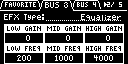
- Press the [VALUE] knob.
- The value display is highlighted. You can now change the effects.
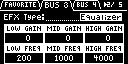
- Use the [VALUE] knob to select the effect, and press the [VALUE] knob.
- This confirms the EFX Type.
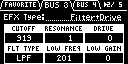
- Turn the [VALUE] knob to move the cursor to the row of the parameter that you want to edit.
- This lets you use the [CTRL 1]–[CTRL 3] knobs to edit the parameter.
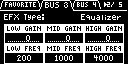
- Use the [CTRL 1]–[CTRL 3] knobs to edit the parameter.
- To finish making settings, press the [EXIT] button.
MEMO
- In modes such as sample mode, press the [BUS FX] button while holding down the [VALUE] knob to turn the BUS 3 and BUS 4 effects off. This operation has no effect on the “FAVORITE” parameter values.