Importing an audio file
Here’s how to import an audio file into the V31 as a user sample.
- Insert the SD card into the V31.
- Ø “Side panel and front panel”
- Hold down the [SHIFT] button and press the [EXPANSION] button.
- The USER SAMPLE LIST screen appears.
- Use the cursor buttons to select the import destination number, and press the [F6] (IMPORT) button.
- The USER SAMPLE IMPORT screen appears.
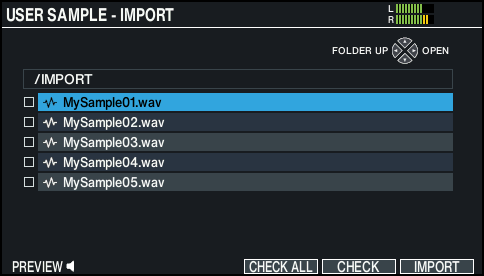
- * If you select a number in which data already exists, the message “User Sample already exists!” appears. Select a number that contains no data.
- Use the cursor buttons to select an audio file, and press the [F6] (IMPORT) button.

Cursor buttons
Function
[Ç] button
Moves cursor (up)
[É] button
Moves cursor (down)
[Í] button
Closes (exits) the folder
[Ë] button
Opens (enters) the folder
MEMO
- You can press the [F1] (PREVIEW) button to preview the selected audio file.
Only 44.1 kHz files (16/24-bit) can be previewed. - You can import all audio files at once that you selected with a check mark using the [F5] (CHECK) button. Press the [F4] (CHECK ALL) button to select all audio files at once in a folder.
- You can press the [F1] (PREVIEW) button to preview the selected audio file.
- Press the [F6] (IMPORT) button.
- A confirmation message appears.
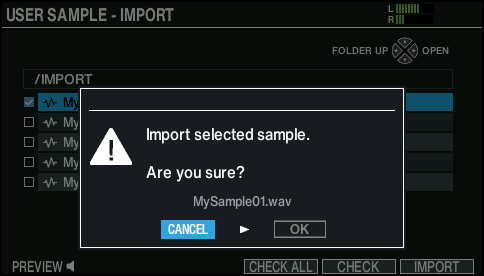
- If you decide to cancel, select “CANCEL” and press the [ENTER] button.
- Select “OK” and press the [ENTER] button.
- The audio file is imported.