Audio output assignments (OUTPUT)
Here’s how to adjust the output volume from the MASTER OUT jacks and the PHONES jack.
- Press the [MENU] button.
- Use the cursor buttons to select “SYSTEM” Ó “OUTPUT”, and press the [ENTER] button.
- The OUTPUT screen appears.
- Use the function buttons to select the function to set.

Button
Explanation
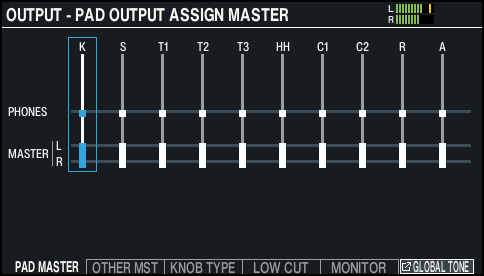
[F1] (PAD MASTER) button
Sets the audio outputs from the PHONES jack and MASTER OUT jacks for each pad.
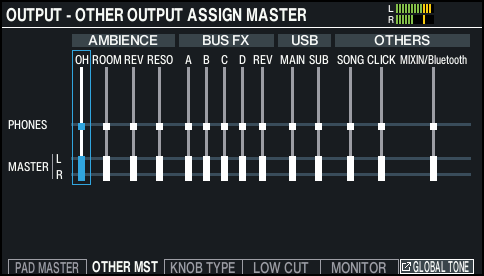
[F2] (OTHER MST) button
Sets the outputs of the PHONES jack and MASTER OUT jacks for the ambience, BUS FX, USB audio, song and so forth.
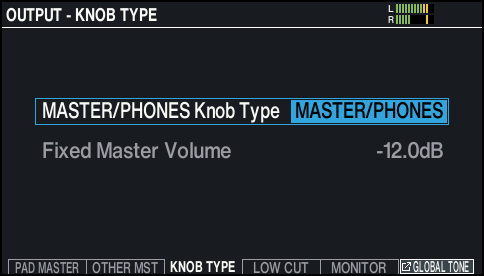
[F3] (KNOB TYPE) button
Configures the [MASTER/PHONES] knob setting.
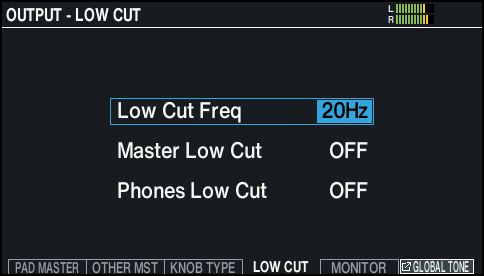
[F4] (LOW CUT) button
Cuts the frequency region below the specified frequency (low cut).
This setting is common to all output jacks.
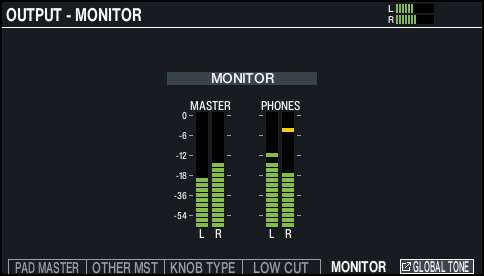
[F5] (MONITOR) button
This lets you check the output volume of the PHONES jack and MASTER OUT jacks.
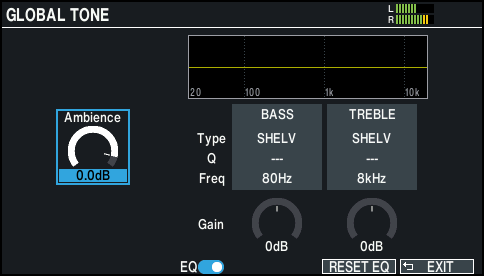
[F6] (GLOBAL TONE) button
This lets you adjust the ambience and equalizer that’s applied to all drum kits.
- For details on the output parameters, refer to “Data List” (Roland website).
- Strike a pad or press the cursor buttons [Í] [Ë] to select the pad or function that you want to configure.
Display
Explanation
K
KICK
S
SNARE
T1–3
TOM1–3
HH
HI-HAT
C1, C2
CRASH1, 2
R
RIDE
A
AUX
Display
Explanation
AMBIENCE
Ø “Recreating the reverberations of a performance location (AMBIENCE)”
OH
Overhead
ROOM
Room
REV
Reverb
RESO
Kit resonance
BUS FX
A–D
BUS-A–D
REV
BUS FX reverb
USB
MAIN, SUB
Sound that is input to the USB COMPUTER port
OTHERS
SONG
Song
CLICK
Click and song click track output
Ø “Using the Click”
MIXIN/Bluetooth
The sound that is input to the MIX IN jack, and Bluetooth audio
- Use the cursor [á] [à] buttons or the dial to select the output destination.
- Press the [KIT] button to return to the KIT screen.