Editing a user sample (EDIT)
You can edit the region within which a user sample can be played, along with its name.
- Select the user sample to set in the USER SAMPLE LIST screen.
- Press the [F2] (EDIT) button.
- The USER SAMPLE - EDIT screen appears.
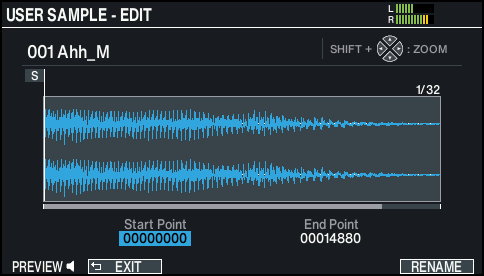
- Use the cursor buttons to select a parameter, and use the [-] [+] buttons or the dial to edit the value.

Parameter | Explanation |
ZOOM | Zooms the waveform display in or out. You can zoom-in/out on the horizontal axis by holding down the [SHIFT] button and pressing the cursor [ã] [â] buttons. You can zoom-in/out on the vertical axis by holding down the [SHIFT] button and pressing the cursor [á] [à] buttons. |
Start Point | Adjusts the start point (the location at which the user sample starts playing). |
End Point | Adjusts the end point (the location at which the user sample stops playing). |
RENAME | Press the [F6] (RENAME) button to edit the name of the user sample. |
MEMO
You can press the [F1] (PREVIEW) button to preview the user sample you’re currently editing.