Viewing information for the V51 (SYSTEM INFO)
Shows information about the V51 itself, such as the program version.
- Press the [SETUP] button.
- Use the cursor buttons to select “SYSTEM INFO”, and press the [ENTER] button.
- The SYSTEM INFO screen appears.
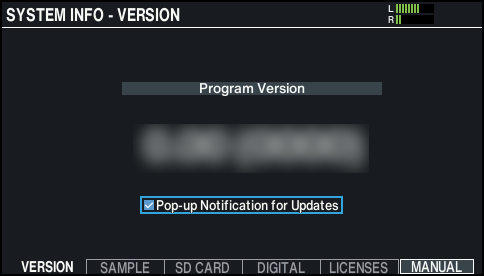
- Press a button from [F1] (VERSION) to [F5] (LICENSES) to select the item you want to view.

Button
Explanation
[F1] (VERSION) button
Displays the program version.
If you select the “Pop-up Notification for Updates” check box, a pop-up notification appears when the program is updated (only when connected to Wi-Fi).
When the VERSION tab is selected, press the [F6] (MANUAL) button to display a 2D code that you can scan with your smartphone for easy access to the V51 website and support page.
[F2] (SAMPLE) button
Displays the number of loaded user samples and the remaining amount of space for user samples in user memory.
[F3] (SD CARD) button
Displays the number of backup data and kit backup data that are saved on the SD card.
[F4] (DIGITAL) button
Displays the version of the digital connection-compatible pads that are connected to the V51.
The FUNC button of the selected pad is blinking.
[F5] (LICENSES) button
Shows the license information for the technologies used on the V51.
- Press the [KIT] button to return to the KIT screen.