Loading drum kits from Instrument Expansions and Kit Packs
Slots 1–3 contain factory preloaded Instrument Expansions.
Here’s how to import a drum kit from an Instrument Expansion.
The drum kits in the Kit Packs can also be loaded using the same steps.
- Press the [EXPANSION] button.
MEMO
The first time you do this, the Roland Cloud introductory screen appears. Follow the steps in the “Roland Cloud Connect Setup Guide” (separate document) to connect to Roland Cloud.
Press the [F6] (SKIP) button if you want to configure this later.
- * If you press the [F1] button, this screen is not shown again. If you want to return to the screen, press the [F5] button on the INSTRUMENT EXPANSIONS/KIT PACKS screen while holding down the [SHIFT] button.
- Press the [F1] (SLOT) button.
- The INSTRUMENT EXPANSIONS / KIT PACKS - SLOT screen appears.
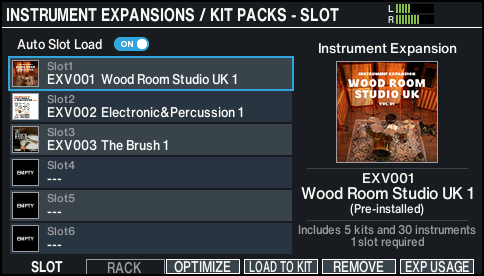
- Move the cursor to the Instrument Expansion that you want to load, and press the [F4] (LOAD TO KIT) button.
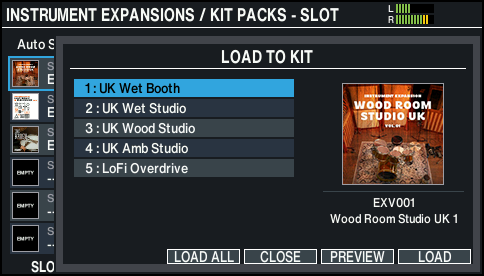
- Press the [F5] (PREVIEW) button to check the sound of a drum kit before you load it.
- Move the cursor to the drum kit of the Instrument Expansion that you want to load, and press the [F6] (LOAD) button.
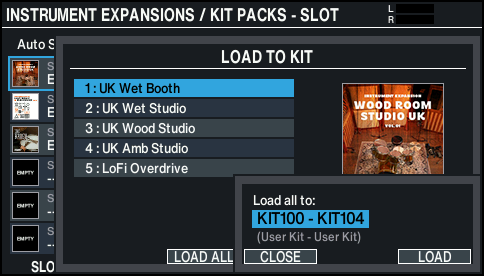
MEMO
Press the [F3] (LOAD ALL) button to load all of the drum kits included in the Instrument Expansions and Kit Packs.
- * This function is available from Ver.2.00.
- Use the [-] [+] buttons or the dial to select the destination drum kit to which you want to load.
- Press the [F6] (LOAD) button.
- A confirmation message appears.
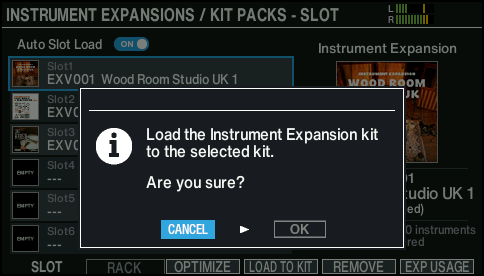
- Select “OK” and press the [ENTER] button.
- This loads the drum kit.
MEMO
See the “Roland Cloud Connect Setup Guide” for how to install Instrument Expansions from Roland Cloud.