5. Adjusting the DWe pad sensitivity
Each DWe pad is already set up with the optimal sensitivity when shipped from the factory. Adjust the DWe pad sensitivity if you need to make more detailed settings or use DWe pads together with Roland pads.
MEMO
For details on the parameters that can be edited, refer to “Data List” (Roland website).
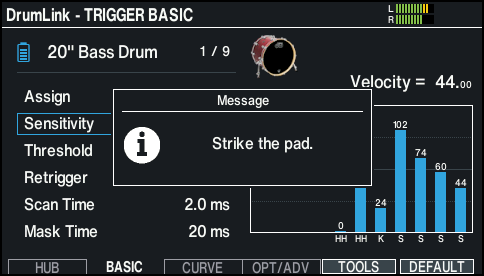
- Access the DrumLink - HUB screen.
- Press the [F2] (BASIC) button or the [F3] (CURVE) button to display the DrumLink - TRIGGER BASIC screen or the DrumLink - TRIGGER CURVE screen.
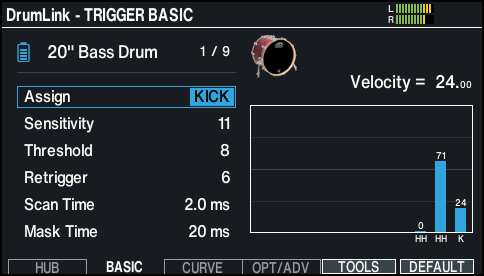
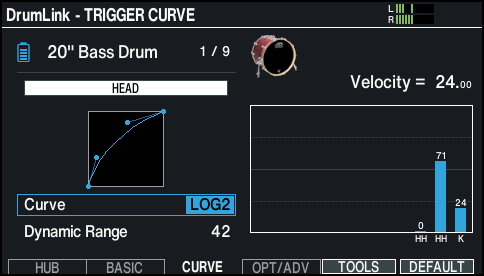
- Strike to select the DWe pad that you want to set.
- You can also use the cursor buttons to move the cursor to the position shown in the illustration, and use the [-] [+] buttons or the dial to select the DWe pad to set.
- Use the cursor buttons to select a parameter, and use the [-] [+] buttons or the dial to edit the value.
- Strike the selected pad once to apply the parameter.
- Simply changing the parameter does not apply the settings to the pad. When an asterisk appears as shown below, this means that the settings haven’t yet been applied to the pad.
- Strike the applicable pad to apply the settings. The asterisk disappears once the settings are applied to the pad.
MEMO
- When using DWe pads together with Roland pads, note that their respective sensitivities may differ. In this case, you can mainly adjust the Sensitivity, Curve and Dynamics parameters for the DWe pads to make the respective sensitivities about the same.
- Here’s how to return the parameters to the factory settings.
- Press the [F6] (DEFAULT) button.
- A confirmation message appears.
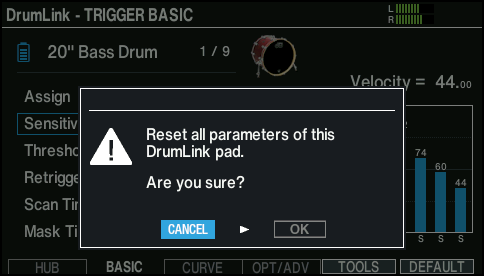
- Use the cursor buttons to select “OK”, and press the [ENTER] button to begin initializing.
- When the next message is shown, strike the pad.