Backing up to an SD card (SAVE)
Here’s how to save all settings that are stored in the V71 (up to 99 sets).
- Insert the SD card into the V71.
- Ø “Side panel and front panel”
- Press the [BACKUP] button.
- Use the cursor buttons or the dial to select “SAVE” and press the [ENTER] button.
- The SD CARD SAVE ALL screen appears.
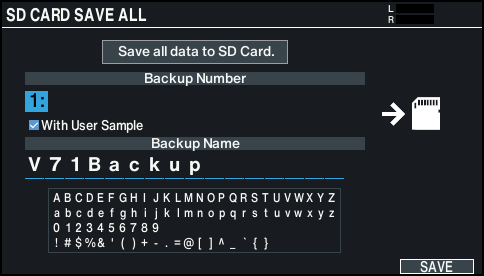
- Configure the backup.
- Parameter select: use cursor buttons
- Value select: use [-] [+] buttons or dial

Parameter
Explanation
Backup Number
Selects the backup number.
With User Samples
Selects whether user samples are also backed up.
Backup Name
Adds a name to the backup data.
- * If you back up user samples as well, it may take several minutes to save the data depending on the size of the user samples.
- * If you don’t back up the user samples, and you then delete the user samples in this unit or renumber them, the drum kit is not reproduced correctly even if you load the backup.
- Press the [F6] (SAVE) button.
- A confirmation message appears.
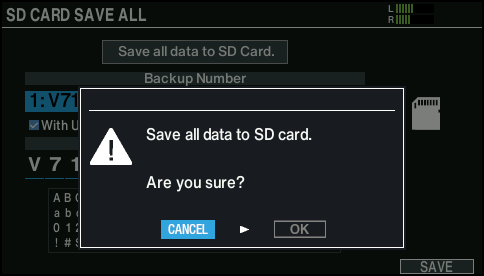
- If you decide to cancel, select “CANCEL” and press the [ENTER] button.
- Select “OK” and press the [ENTER] button.
- The settings are saved to the SD card.
- Press the [ENTER] button to finish the operation.