Configuring the preview sound
This shows the steps for configuring how the preview sounds when you press the [HEAD PREVIEW] button or [RIM] (PREVIEW) button.
NOTE
You may hear the preview sound when the V71 is exposed to a strong impact. If this happens, you can set Preview Mode to “PREVIEW OFF”.
- Press the [SETUP] button.
- Use the cursor buttons to select “OPTION”, and press the [ENTER] button.
- The OPTION screen appears.
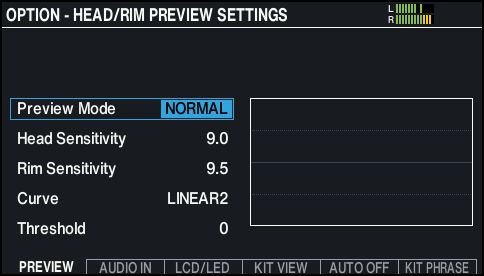
- Press the [F1] (PREVIEW) button.
- The OPTION - HEAD/RIM PREVIEW SETTINGS screen appears.
- Move the cursor to Preview Mode, and use the [-] [+] buttons or the dial to change the value.

Parameter
Explanation
NORMAL
The volume changes in response to how hard you press the buttons.
You can adjust the sensitivity and curve.
FIXED
The volume remains the same regardless of how hard you press the buttons.
PREVIEW OFF
Turns the preview off (no sound is heard even when you press the buttons).
This is useful when you want to prevent the unit from accidentally operating when onstage, or when you don’t want the V71 to accidentally operate when exposed to strong impact.
- Press the [KIT] button to return to the KIT screen.