Transferring data from the EX-4 to a computer (MIDI BULK DUMP)
Here’s how to transfer the system, GEAR SUITE data and user memory settings (collectively called “bulk data”) to a computer. This operation is called a “bulk dump”.
Do this when you need to back up the settings of the EX-4 to your computer.
MEMO
- This product uses the standard USB driver provided by the operating system.
- When connecting an iPad or iPhone, use a commercially available USB Type-C® type adaptor or cable.
- A DAW or MIDI sequencer that can record SysEx (system exclusive) data is required.
- Connect your computer to the EX-4 with a USB cable.
- On your DAW or other MIDI sequencer, create a MIDI track that can record the MIDI output of the EX-4.
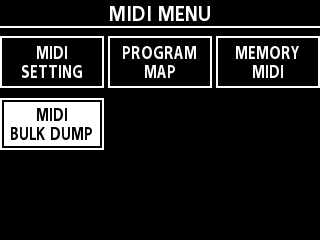
- Select [MENU/EXIT] Ó “MIDI” Ó “MIDI BULK DUMP”.
- The MIDI BULK DUMP screen appears.
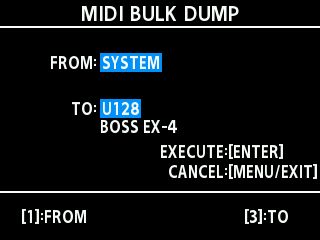
- Specify the range of data to be transferred by turning the [1] and [3] knobs to set “FROM” and “TO”.

Knob
Parameter
Value
Explanation
[1]
[3]
FROM
TO
SYSTEM
System parameter settings
GEAR SUITE
GEAR SUITE parameter settings
U001–U128
Settings for memory numbers U001–U128
- Start recording on your DAW and press the [TYPE/VALUE] knob on the EX-4.
- A confirmation message appears.
- To cancel the bulk dump, press the [MENU/EXIT] button.
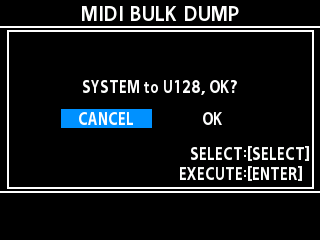
- Turn the [SELECT] knob to select “OK”, and press the [TYPE/VALUE] knob.
- The bulk data transfer begins.
- When the bulk dump is finished, the MIDI MENU screen is shown.
- Stop recording on your DAW.
MEMO
By transmitting the data on your DAW that you’ve recorded and saved on your computer to the EX-4 (MIDI BULK LOAD), you can restore the system, GEAR SUITE and user memory settings.
Ó “Receiving bulk data saved on your computer (MIDI BULK LOAD)”