Editing instruments in detail (V-EDIT)
V-EDIT lets you create drum sounds in the same way as you would with acoustic drums, such as by choosing and tuning the heads, muffling (muting) the sound and so on.
Ø For details on the parameters that can be edited, refer to “Data List” (Roland website).
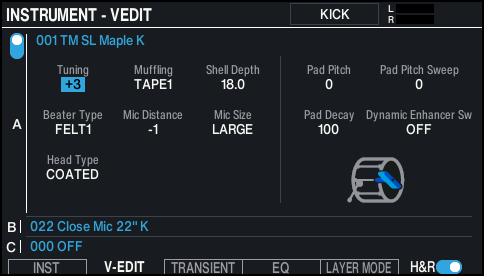
- On the INSTRUMENT screen, press the [F2] (V-EDIT) button.
- The INSTRUMENT - V-EDIT screen appears.
- Select the pad to configure.
- Ø “Selecting the pad to set”
- Use the cursor buttons to select a parameter, and use the [-] [+] buttons or the dial to edit the value.
MEMO
- Press the cursor [á] [à] buttons several times to move to the layer to set. You can also press the cursor [á] [à] buttons while holding down the [SHIFT] button to jump to the layer you want to set.
- Press the [F4] (RESET V-EDIT) button while holding down the [SHIFT] button to restore the V-EDIT settings of the selected layer to their default values.
- Press the [KIT] button to return to the KIT screen.