Comparing with or reverting to the unedited drum kit (SNAPSHOT)
You can temporarily save the currently-edited drum kit, and compare it with the current settings or revert back to it (Snapshot).
- Select the drum kit that you want to edit.
- When you select a drum kit, the data of the selected drum kit is stored in LAST SELECTED.
- On the KIT screen, press the [F5] (TOOLS) button.
- Use the cursor buttons or the dial to select “SNAPSHOT”, and press the [F6] (SELECT) button.
- The SNAPSHOT screen appears.
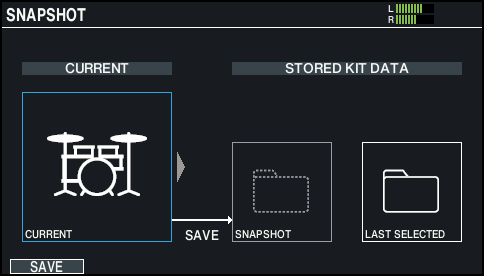
- Press the [F1] (SAVE) button.
- The current drum kit settings are saved in SNAPSHOT.
- Press the [EXIT] button to exit the SNAPSHOT screen, and edit the drum kit.
- * When you switch drum kits, the settings saved in SNAPSHOT are deleted.
- * The kit image can’t be edited when using the snapshot function.
- After editing, perform steps 2 and 3 to show the SNAPSHOT screen.
- Use the cursor buttons or the dial to switch between the saved drum kits, and play them to compare.

Button
Explanation
CURRENT
Current drum kit settings
SNAPSHOT
Drum kit settings saved in SNAPSHOT
LAST SELECTED
Settings immediately after selecting the drum kit
- Restoring the current drum kit settings to a snapshot, or to the settings that were used right after selecting the drum kit
- Use the cursor buttons or the dial to select the drum kit settings to restore.
- Go to step 11 to keep the current drum kit settings as-is.
- Press the [F6] (RESTORE) button.
- A confirmation message appears.
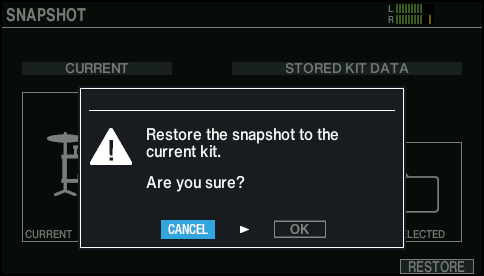
- If you decide to cancel, select “CANCEL” and press the [ENTER] button.
- Select “OK” and press the [ENTER] button.
- The current drum kit settings return to the settings of the drum kit that you selected in step 8.
- Press the [KIT] button to return to the DRUM KIT screen.