Example 1: Copying a drum kit (KIT)
- Select “KIT” on the COPY screen, and then press the [ENTER] button.
- The COPY KIT screen appears.
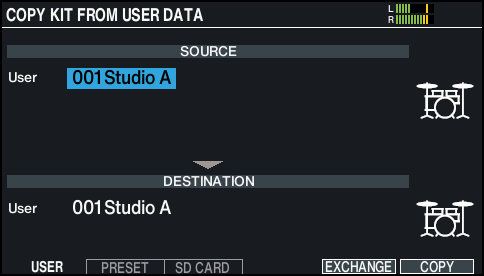
- Press the [F1] (USER)–[F3] (SD CARD) buttons to select the item you want to edit.

Button
Explanation
[F1] (USER) button
Copies from user memory. You can swap (exchange) the copy source and copy destination kits, but only if the copy source is in the User memory.
[F2] (PRESET) button
Copies drum kits of preset memory. Choose this if you want to return to the factory-set drum kit settings.
- User samples that are assigned to a factory-set drum kit cannot be copied.
[F3] (SD CARD) button
Copies drum kits from backup data saved on an SD card.
- Use the cursor buttons to select a parameter, and use the [-] [+] buttons or the dial to make the copy settings.
- USER
- PRESET
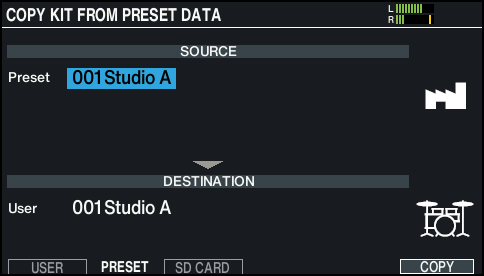
- SD CARD
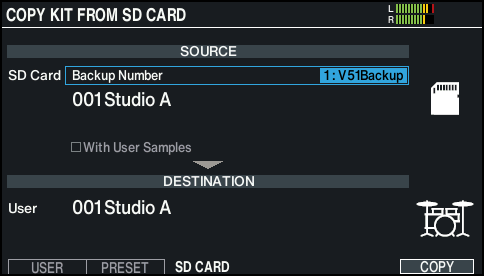
- * If you are copying backup data that does not include user samples, you can’t select the “With User Samples” check box.
- Press the [F6] (COPY) button.
- By pressing the [F5] (EXCHANGE) button, you can exchange user memories (USER only).
- A confirmation message appears.
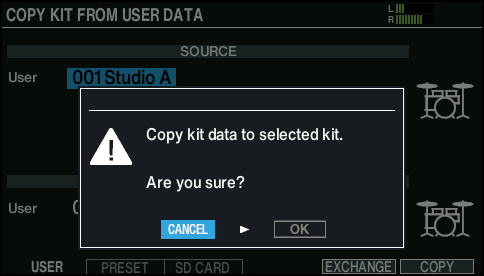
- If you decide to cancel, select “CANCEL” and press the [ENTER] button.
- Select “OK” and press the [ENTER] button.
- The drum kit is copied.