Loading auto-backup data
The V51 automatically backs up your data when you turn off the power. Up to five sets of the most recent backup data can be created.
Here’s how to load the auto-backup data.
- When you turn off the power and a new set of auto-backup data is created, the oldest set of backup data is deleted.
- The kit images and user samples are not backed up.
- Access the SD CARD LOAD ALL screen.
- Press the [F1] (LOAD AUTO BACKUP) button.
- The LOAD AUTO BACKUP DATA screen appears.
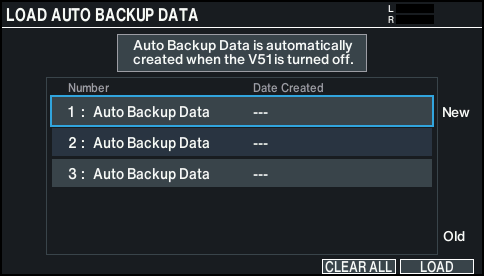
- Use the cursor buttons or the dial to select the backup data, and press the [F6] (LOAD) button.
- A confirmation message appears.
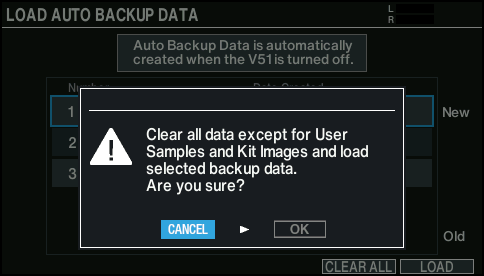
- If you decide to cancel, select “CANCEL” and press the [ENTER] button.
MEMO
Press the [F5] (CLEAR ALL) button if you want to erase all the sets of the auto-backup data.
- Select “OK” and press the [ENTER] button.
- This loads the backup data.
- Press the [ENTER] button to finish the operation.