Deleting Backup Data from an SD Card (DELETE/DELETE 1 KIT)
Here’s how to delete unneeded backup data (including user samples) from an SD card.
- Insert the SD card into the V51.
- Ø “Side panel and front panel”
- Access the BACKUP screen.
- Use the cursor buttons or the dial to select the backup menu, and press the [ENTER] button.

Backup menu
Explanation
DELETE
Deletes the backup data.
DELETE 1 KIT
Deletes the kit backup data.
- Example: using DELETE
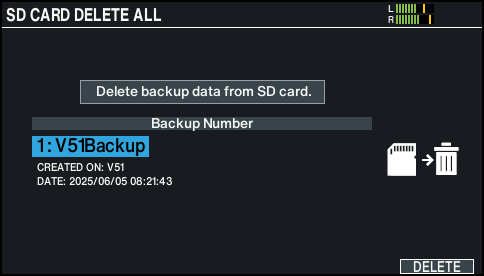
- Make deletion settings.
Parameter
Explanation
DELETE
Selects the backup number that you want to delete.
DELETE 1 KIT
Selects the kit backup number that you want to delete.
MEMO
The date of backup is shown in the backup data that’s saved when connected via Wi-Fi.
- Press the [F6] (DELETE) button.
- A confirmation message appears.
- Example: using DELETE
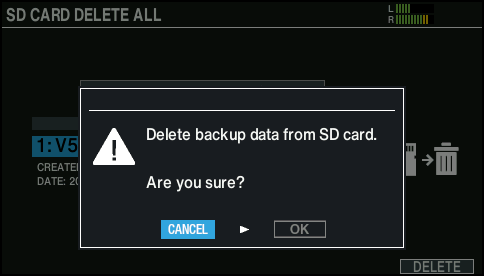
- If you decide to cancel, select “CANCEL” and press the [ENTER] button.
- Select “OK” and press the [ENTER] button.
- The backup data is deleted from the SD card.
- Press the [ENTER] button to finish the operation.