Configuring the detailed output routing
Here’s how to make the detailed settings for output routing to the MASTER OUT jacks, the PHONES jack and the DIRECT OUT jacks.
ØFor details on the parameters that can be edited, refer to “Data List” (Roland website).
- On the OUTPUT screen, press the [F6] (ROUTING) button.
- The OUTPUT ROUTING screen appears.
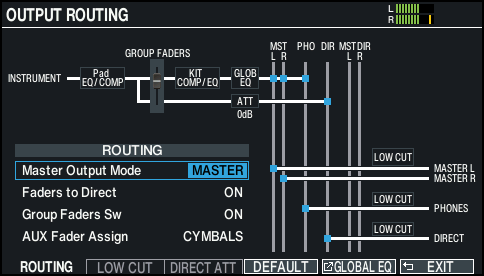
- Press the [F1] (ROUTING)–[F3] (DIRECT ATT) buttons to select the item that you want to edit.

Button
Explanation
[F1] (ROUTING) button
Changes how the fader effect is applied, as well as the MASTER OUT output settings and so forth.
[F2] (LOW CUT) button
Specifies whether the low-frequency region is cut from the output.
[F3] (DIRECT ATT) button
Specifies whether to apply an attenuator to the signal output from the DIRECT OUT jacks.
When “Master Out Mode” on the ROUTING tab is set to “DIRECT”, this is enabled for the MASTER OUT jacks as well.
MEMO
- To return to the default values, select the item for which you want to revert the value and press the [F4] (DEFAULT) button.
- The LOW CUT and DIRECT ATT settings have no effect on USB audio output.
- Press the [KIT] button to return to the KIT screen.
Routing parameter setting examples
Parameter | Explanation |
|---|---|
Master Output Mode | With the “DIRECT” setting
|
Faders to Direct | When turned “OFF”
|
Group Faders Sw | This sets the adjustable volumes with the faders to a fixed value of 0 dB, regardless of the current fader settings. This is useful when you want to keep all the volumes at a fixed level, such as for preserving the volume balance using a mixer and so forth. |
ØFor other settings, refer to “Data List” (Roland website).