Audio output assignments (OUTPUT)
Here’s how to configure the outputs from the MASTER OUT and DIRECT OUT jacks.
- Press the [SETUP] button.
- Use the cursor buttons to select “OUTPUT”, and press the [ENTER] button.
- The OUTPUT screen appears.
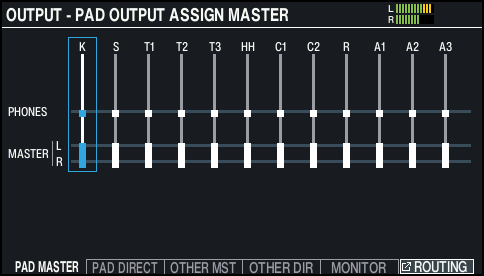
- Use the function buttons to select the function to set.

Button
Explanation
[F1] (PAD MASTER) button
Specifies each pad’s output assignments for the PHONES jacks and MASTER OUT jacks (when OUTPUT ROUTING Master Output Mode is set to “MASTER”).
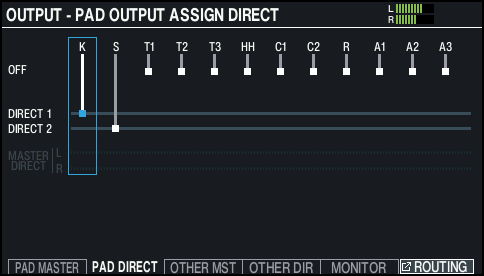
[F2] (PAD DIRECT) button
Specifies each pad’s output assignments for the DIRECT OUT 1 and 2 jacks and MASTER OUT jacks (when OUTPUT ROUTING Master Output Mode is set to “DIRECT”).
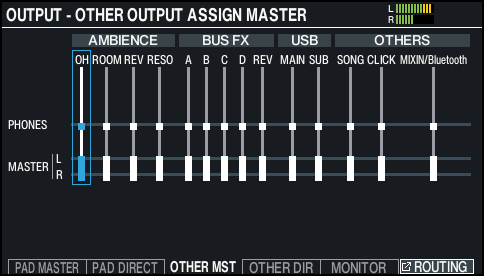
[F3] (OTHER MST) button
Specifies the output assignments for the PHONES and MASTER OUT jacks (when OUTPUT ROUTING Master Output Mode is set to “MASTER”) for the ambience, BUS FX, USB audio, songs and so forth.
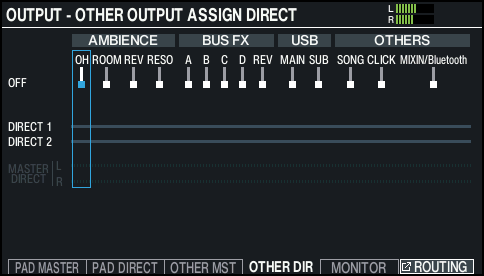
[F4] (OTHER DIR) button
Specifies the output assignments for the DIRECT OUT 1 and 2 jacks and MASTER OUT jacks (when OUTPUT ROUTING Master Output Mode is set to “DIRECT”) for the ambience, bus FX, USB audio, songs and so forth.
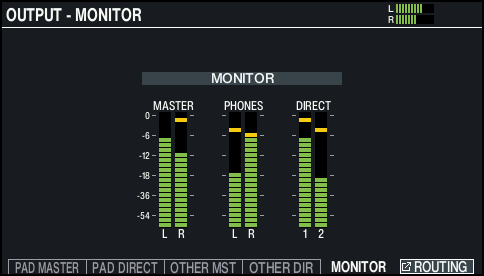
[F5] (MONITOR) button
This lets you check the output volumes for each jack.
- For details on the output parameters, refer to “Data List” (Roland website).
- Strike a pad or press the cursor buttons [Í] [Ë] to select the pad or function that you want to configure.
Display
Explanation
K
KICK
S
SNARE
T1–3
TOM1–3
HH
HI-HAT
C1, C2
CRASH1, 2
R
RIDE
A1–3
AUX1–3
Display
Explanation
AMBIENCE
Ø “Recreating the reverberations of a performance location (AMBIENCE)”
OH
Overhead
ROOM
Room
REV
Reverb
RESO
Kit resonance
BUS FX
A–D
BUS-A–D
REV
BUS FX reverb
USB
MAIN, SUB
Sound that is input to the USB COMPUTER port
OTHERS
SONG
Song
CLICK
Click and song click track output
Ø “Using the Click”
MIXIN/Bluetooth
The sound that is input to the MIX IN jack, and Bluetooth audio
- Use the cursor [á] [à] buttons or the dial to select the output destination.
- Press the [KIT] button to return to the KIT screen.