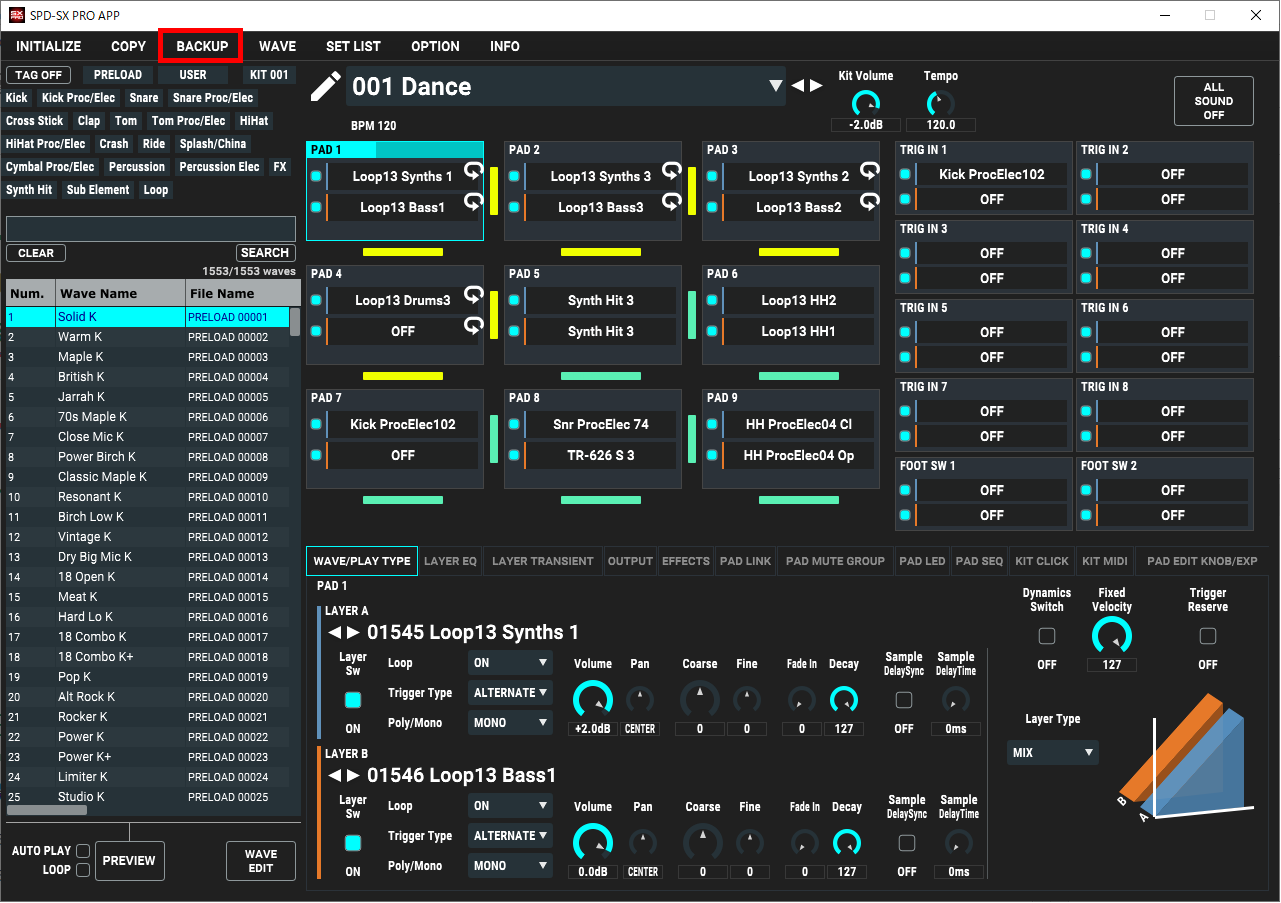
SAVE ALL
Here’s how to back up all the settings stored in the SPD-SX PRO (including the waves) to your computer.
- Click the BACKUP SAVE ALL (NEW FOLDER) box and give a name to the backup (folder name).
In SELECTED FOLDER, select the save destination.
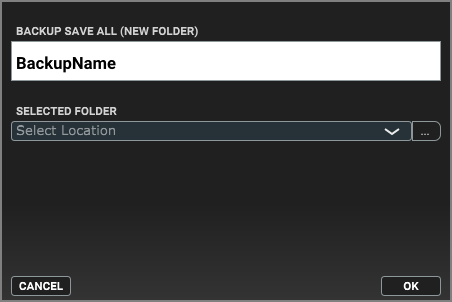
Press the [OK] button.
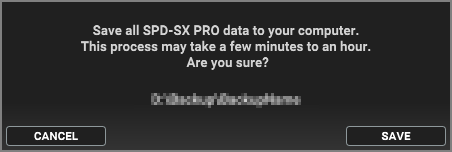
Press the [SAVE] button.

Press the [OK] button.
LOAD ALL
Here are the steps for loading all the settings into this unit (including the waves) that you backed up on your computer.
|
Once you execute the following steps, all the data in the SPD-SX PRO is overwritten. Be sure to save any important data on your computer before doing this. |

In SELECTED FOLDER, select the backup folder to recall.
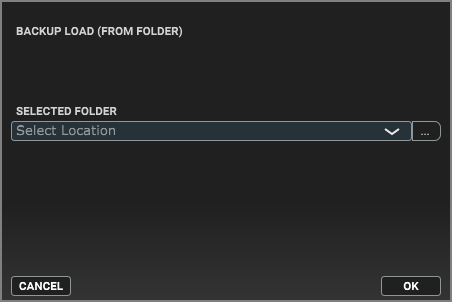
Press the [OK] button.
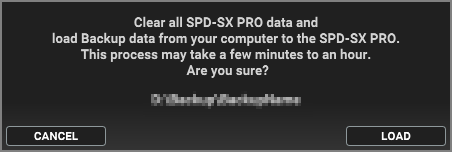
Press the [LOAD] button.

- Press the [OK] button.
SAVE 1 KIT
Here’s how to back up the kit settings (including the waves that the kits use) to your computer.
- Click the BACKUP SAVE 1 KIT (NEW FILE) box and give a name to the backup.
In SELECTED FOLDER, select the save destination.
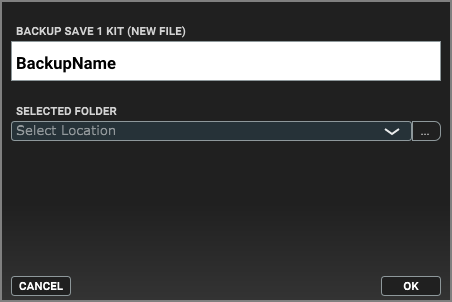
Press the [OK] button.
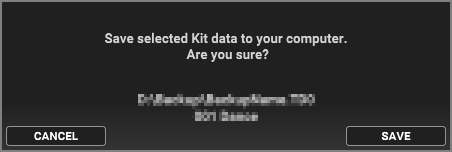
Press the [SAVE] button.

Press the [OK] button.
LOAD 1 KIT
This shows how to load the kit settings (including the waves used by the kit) from the kit backup data that’s saved on your computer.
In SELECTED FILE, select the file to recall.
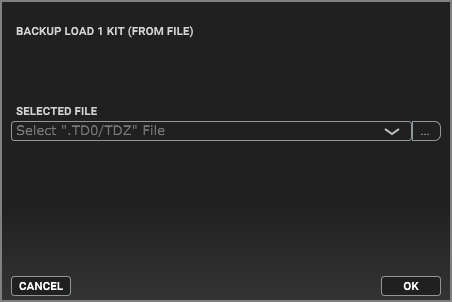
Press the [OK] button.
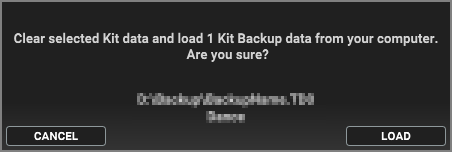
Press the [LOAD] button.

- Press the [OK] button.
Loading the kit backup data downloaded from Roland Cloud for the first time

Press the [INSTALL] button.
Precautions regarding license data
You cannot load kit backup data downloaded from Roland Cloud if its license data differs from the license data saved to the SPD-SX PRO.
In this case, load the factory data and delete the license data saved on the SPD-SX PRO.
GET FACTORY RESET DATA
You can download the factory default settings data (SPD-SX PRO FACTORY RESTORE DATA).
When you load kit backup data into this unit that you downloaded from Roland Cloud, the Roland Cloud license data is saved on the SPD-SX PRO.
Restoring this unit as shown below resets all of this license and kit backup data that you loaded, as well as your user samples and everything else to the factory default settings.
|
Once you execute the following steps, all the data in the SPD-SX PRO is overwritten. Be sure to save any important data on your computer before doing this. |
Restoring the Factory Settings
You can specify and execute the factory settings you downloaded (SPD-SX PRO FACTORY RESTORE DATA) in BACKUP - LOAD ALL.
Select BACKUP - LOAD ALL.
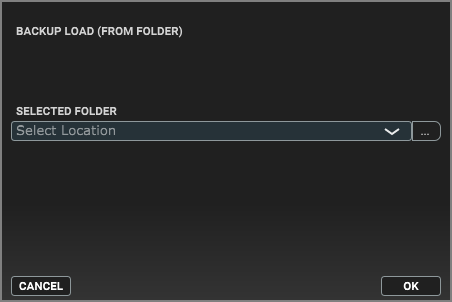
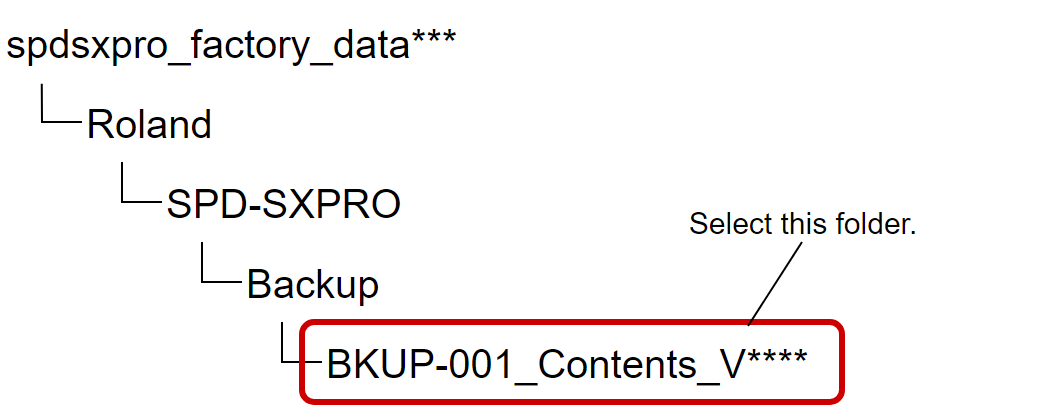
Decompress the downloaded file and select the following folder and then press the [OK] button.
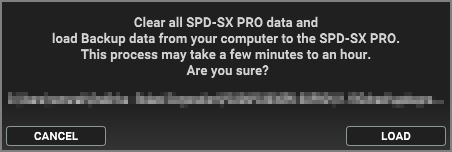
Press the [LOAD] button.
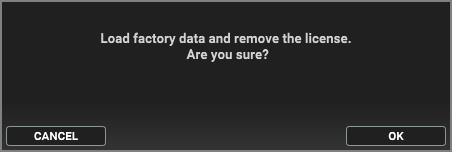
Press the [OK] button.

Press the [OK] button.