Using a custom background image for the KIT screen (kit image)
You can import an image to use as the background image for the KIT screen of the V31. This is useful when you want to make your own drum kit easier to select. The background image can be imported via an SD card or the V31 Editor.
MEMO
Image file format that can be imported: .png
- PNG files saved in interlaced format cannot be used.
- Save the image file you want to use as the background to an SD card.
- Insert the SD card into the V31.
- Ø “Side panel and front panel”
- Access the KIT VIEW screen.
- Move the cursor to Kit Image, and use the dial to select “ON”.
MEMO
When this is set to “GLOBAL”, the settings made in OPTIONÓKIT VIEW (GLOBAL) for the common kit image for the V31 overall are used.
Ø “Other settings (OPTION)”- Press the [F6] (IMG IMPORT) button.
- Use the cursor buttons to select an image file, and press the [F6] (IMPORT) button.

Cursor buttons
Function
[Ç] button
Moves cursor (up)
[É] button
Moves cursor (down)
[Í] button
Closes (exits) the folder
[Ë] button
Opens (enters) the folder
- Press the [F6] (IMPORT) button.
- A confirmation message appears.
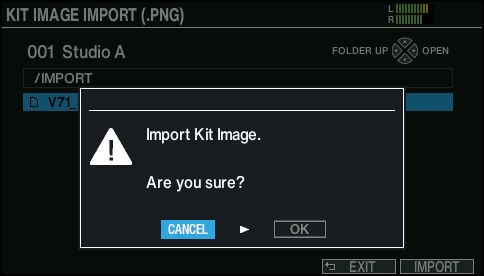
- If you decide to cancel, select “CANCEL” and press the [ENTER] button.
- Select “OK” and press the [ENTER] button.
- The image file is imported.
- Press the [KIT] button to return to the KIT screen.