Example 2: Copy multiple instruments as a set (INST SET)
- Select “INST SET” on the COPY screen, and then press the [ENTER] button.
- The COPY PAD INST SET screen appears.
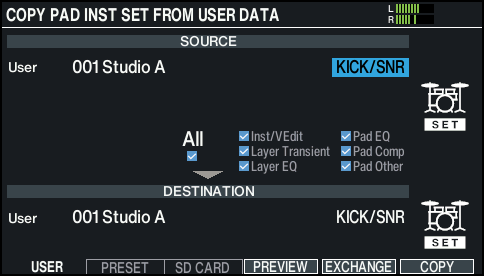
- Press the [F1] (USER)–[F3] (SD CARD) buttons to select the item you want to edit.

Button
Explanation
[F1] (USER) button
Copies from user memory. You can swap (exchange) the copy source and copy destination kits, but only if the copy source is in the User memory.
[F2] (PRESET) button
Copies instruments of preset memory. Choose this if you want to return to the factory-set drum kit settings.
- User samples that are assigned to a factory-set drum kit cannot be copied.
[F3] (SD CARD) button
Copies instruments from backup data saved on an SD card.
- Use the cursor buttons to select a parameter, and use the dial to make the copy settings.
- USER
- PRESET
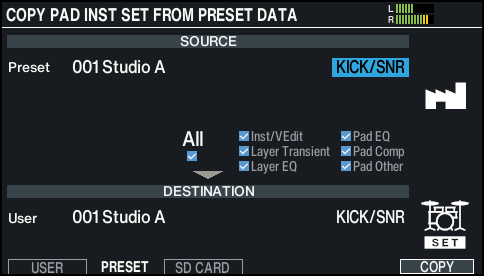
- SD CARD
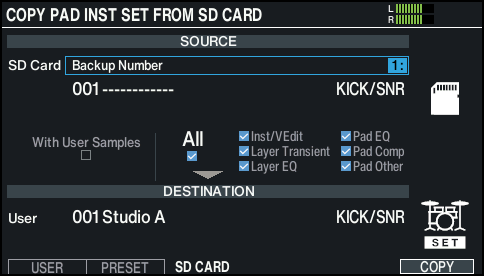
- * If you are copying backup data that does not include user samples, you can’t select the “With User Samples” check box.
- Instrument set to copy
Value
Explanation
KICK/SNR
Copies the KICK and SNARE.
ALL TOMS
Copies TOM1–3.
CYM SET
Copies the HI-HAT, CRASH1, 2 and RIDE.
ALL AUX
Copies the AUX.
- Copied contents (Copy Target)
Value
Explanation
Inst/VEdit
Copies the instrument settings (e.g., Instrument, V-EDIT), such as volume and ambience send.
Layer Transient
Copies the attack and release settings of an instrument.
Layer EQ
Copies the equalizer settings of an instrument.
Pad EQ
Copies the pad equalizer settings.
Pad Comp
Copies the pad compressor settings.
Pad Other
Out of the pad settings, this copies the BUS FX send level and routing settings.
MEMO
- To copy all settings, select the “All” check box.
- Press the [F4] (PREVIEW) button to show the Preview window. When you play while the Preview window is shown, you can check the performance sound settings after copying (only for USER sounds). Select “OK” and press the [ENTER] button to copy the information as-is.
- By pressing the [F5] (EXCHANGE) button, you can exchange user memories (USER only).
- Press the [F6] (COPY) button.
- A confirmation message appears.
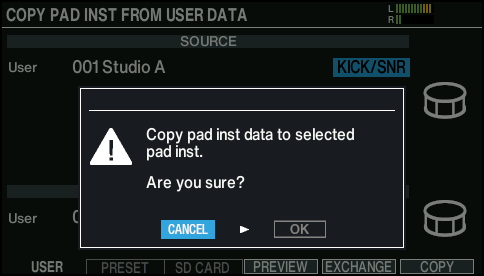
- If you decide to cancel, select “CANCEL” and press the [ENTER] button.
- Select “OK” and press the [ENTER] button.
- The instrument is copied.